Connect to Beam Bolt
This page explains how you can connect your server to Beam Bolt in Paired mode to send it payment instructions remotely.
What is Beam Bolt?
Beam Bolt is an application that accepts payment which can be installed on your Android devices or on Beam’s proprietary devices.
Beam Bolt modes
There are two modes of Beam Bolt.
- Standalone mode
In this mode, you operate Beam Bolt device independently of your server and use it like you would use an EDC.
- Paired mode
This mode allows Beam Bolt device to accept payment requests from your server by establishing a connection. One benefit of using this mode is so that you can map your order, delivery and/or inventory management systems to the payment itself for ease of reconciliation.
Connect to Beam Bolt
After Beam Bolt enters Paired mode, a pairing code and expiry time will be displayed on the device. You can then connect your server to this Beam Bolt device with Create Bolt Connection API.
What is Bolt Connection?
A Bolt Connection represents a connection between your server and a Beam Bolt device. Each device can only have one connection at a time, but there is no limitation on how many connections your server can have.
A Bolt Connection is persisted until you disconnect your server from Beam Bolt device which is done with Delete Bolt Connection API.
Make sure to store the Bolt Connection on your server as it is important for sending payment requests to the connected Beam Bolt device.
Here is an example on how to connect to Beam Bolt:

Sending payment requests
After you successfully create a Bolt Connection, you are ready to forward payment requests to the connected device via Bolt Intents.
What is Bolt Intent?
A Bolt Intent is an intent to receive payment from customer handled by a Beam Bolt device.
It specifies how you want your customer to pay, including the amount, payment method (e.g. Card, Card Installments, QR Prompt Pay), and specific details of that payment method if any (e.g. installment period).
You can create a Bolt Intent with Create Bolt Intent API.
To send a Bolt Intent request to the connected device, you need to specify the boltConnectionId that refers to the connection.
You can set Bolt Intent’s expiry on its creation, or cancel it with Cancel Bolt Intent API.
A canceled/expired Bolt Intent does not receive further payment attempt, i.e. a new Charge cannot be created from this Bolt Intent, but Charges created before the expiry could succeed or fail after the expiry.
We STRONGLY recommend that you set the Bolt Intent expiry duration so that in the case of a long-process payment, both you and Beam Bolt device would not wait for the payment result indefinitely.
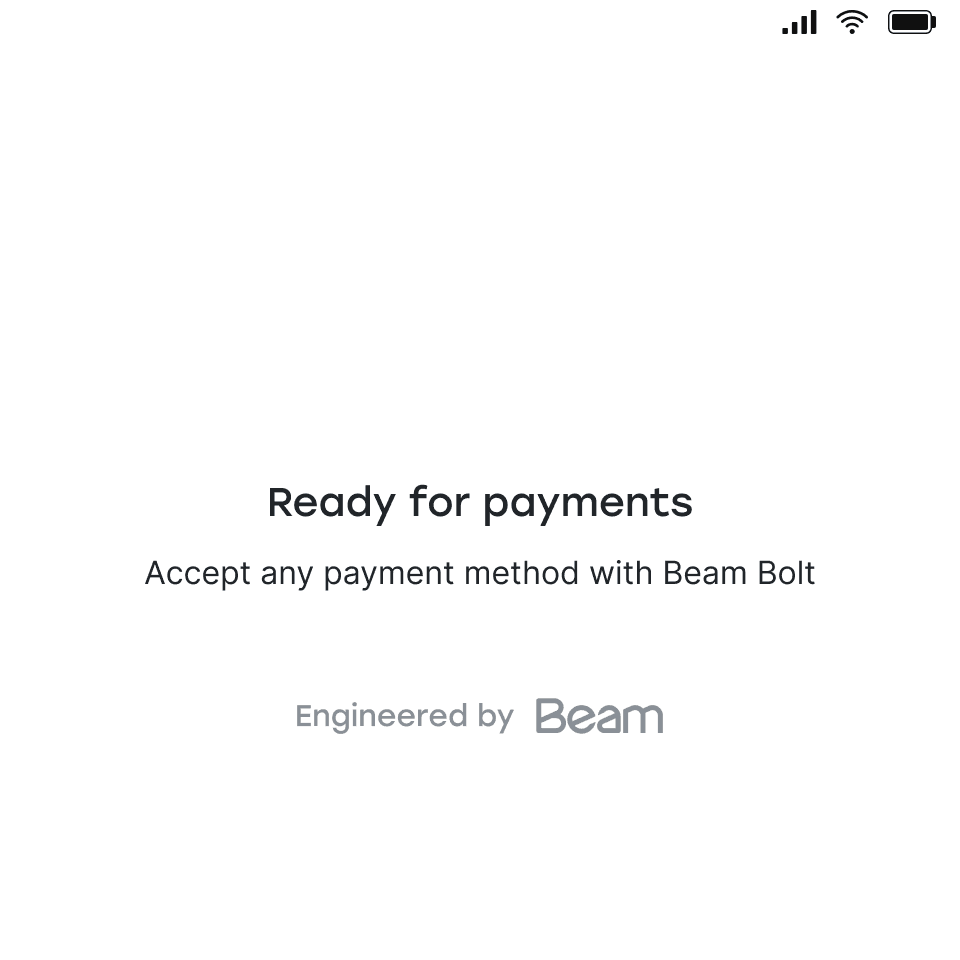
If you create Bolt Intent while Beam Bolt is not in “Ready to accept payments” screen, the payment request will be discarded. Therefore, we recommend that you wait for 5 seconds after Bolt is connected or Bolt Intent is canceled or expired before you create a Bolt Intent.
Handle Bolt Intent
After you successfully create a Bolt Intent, you can track payment status by polling on List the Charges API
with sourceId equals to the created Bolt Intent’s id. Note that by design, there could be many charges from the same Bolt Intent but this should be rare.
During polling, one of these scenarios could happen:
- There’s a charge with status
SUCCEEDED.- The payment is successful and you should proceed accordingly. For example, mark the order in your system as succeeded.
- There’s a charge(s) with status
FAILED.- The payment fails and you should proceed accordingly. For example, mark the order in your system as failed.
- Bolt Intent expires.
- You should treat the payment as failed and proceed accordingly. For example, mark the order in your system as failed.
- Note that a Charge created before expiry could still succeed. In this case please refund the Charge from Lighthouse.
Here is an example on how to accept customer’s payment after connected to Beam Bolt successfully:
