Playground Environment
Playground provides sandbox-like environment which is a convenient way to test the Beam API. It allows you to interact with the API endpoints, view responses, and understand how the API works in an environment made to simulate real use cases.
You can access the Playground API endpoint at https://playground.api.beamcheckout.com .
Before you move on to using the Beam production API, we recommend you test your integration on Playground first. Run through the Go-live Checklist to confirm you’re ready before moving on to production.
To test on Playground, you also need some test data so you aren’t testing with real money — see Test Data.
Setting up in Lighthouse
These same steps work in Production Lighthouse — just swap playground-lighthouse.beamcheckout.com for lighthouse.beamcheckout.com.
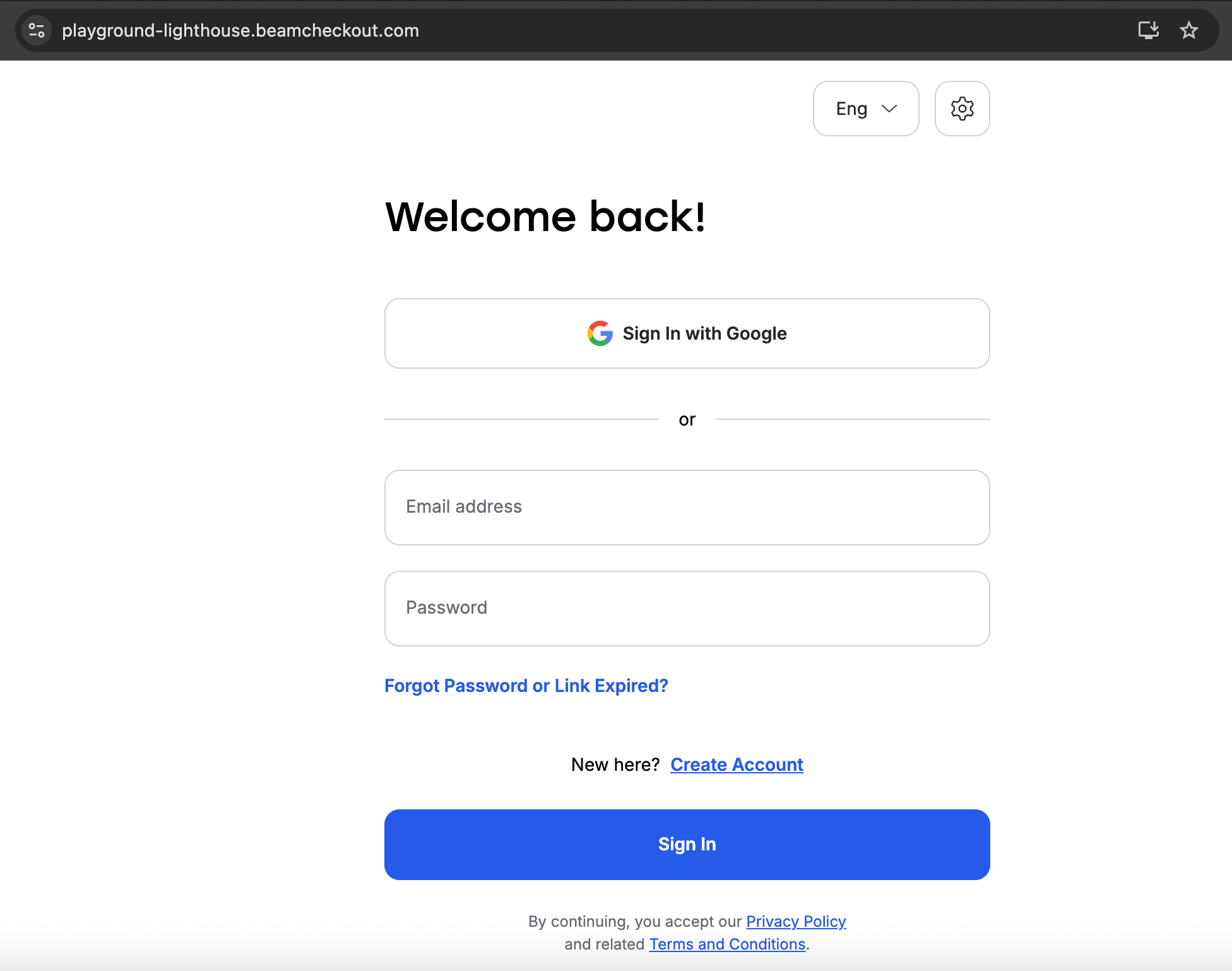
- Go to Beam Playground Lighthouse and log in to your account.
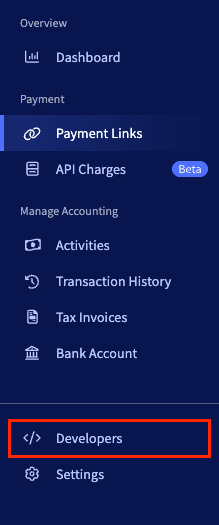
- On the right side of the screen, you will see a sidebar. Click on the Developers section.
-
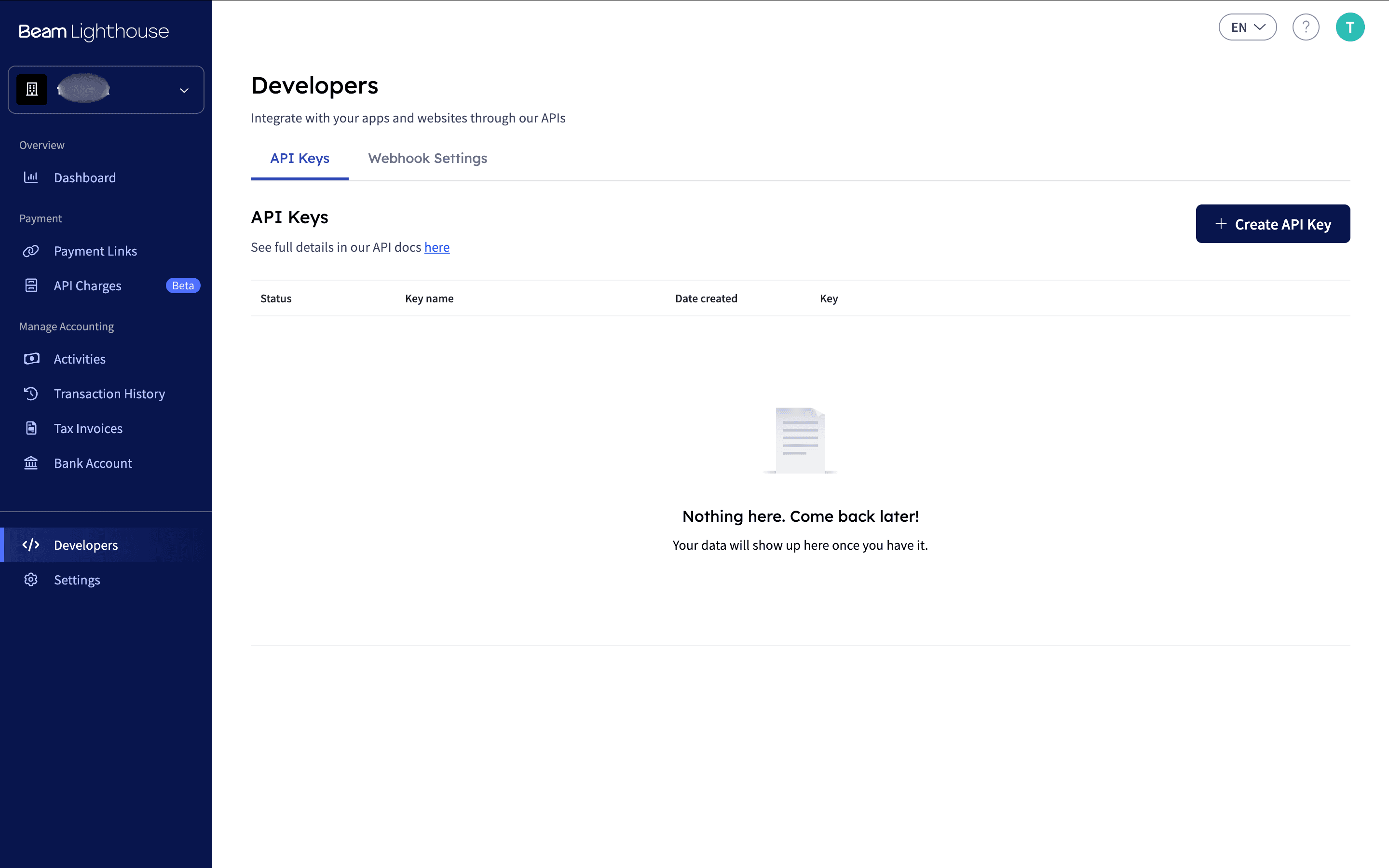
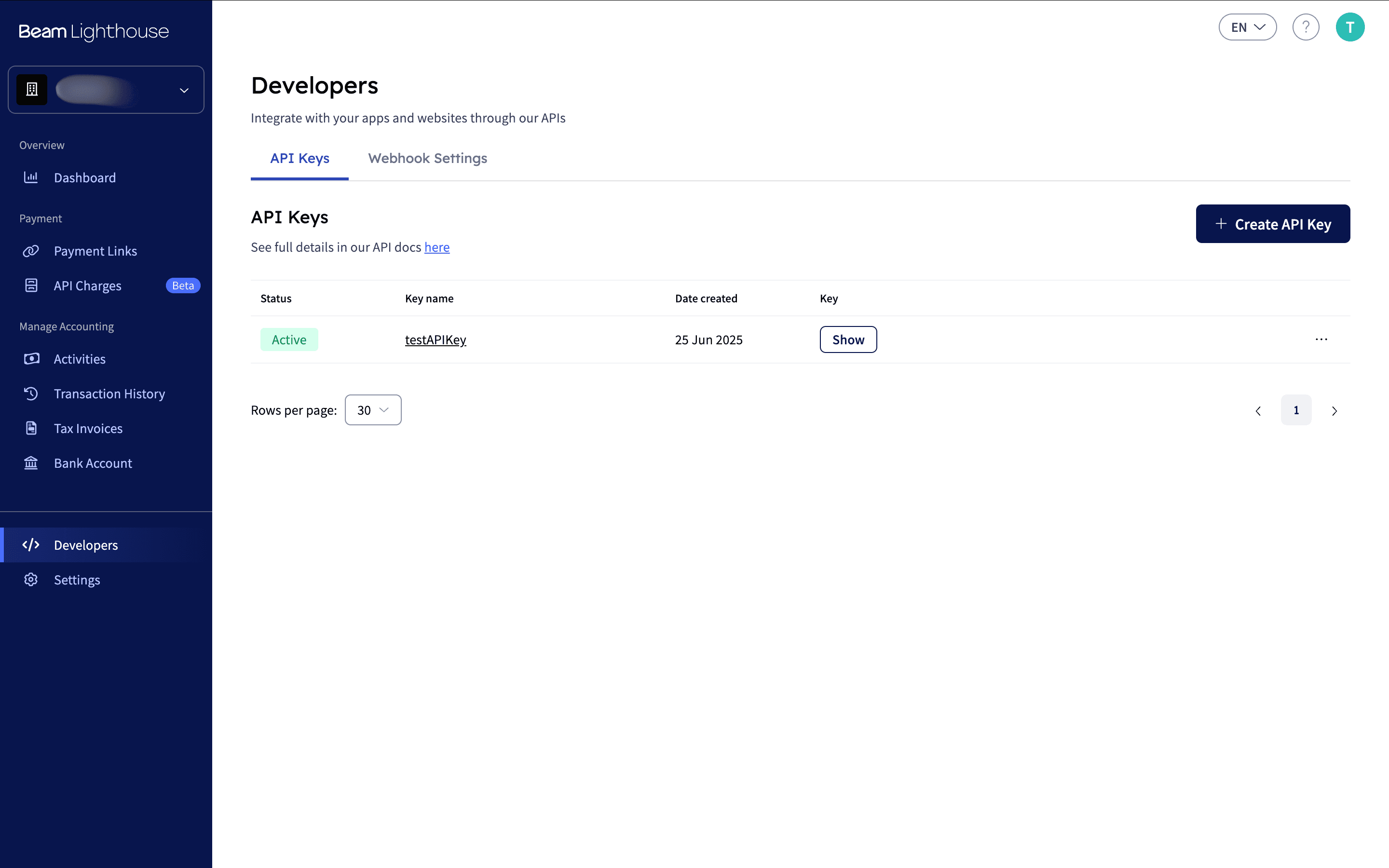
In the Developers page there are two main sections:
- API Key: This is your API key that you will use to authenticate your API requests.
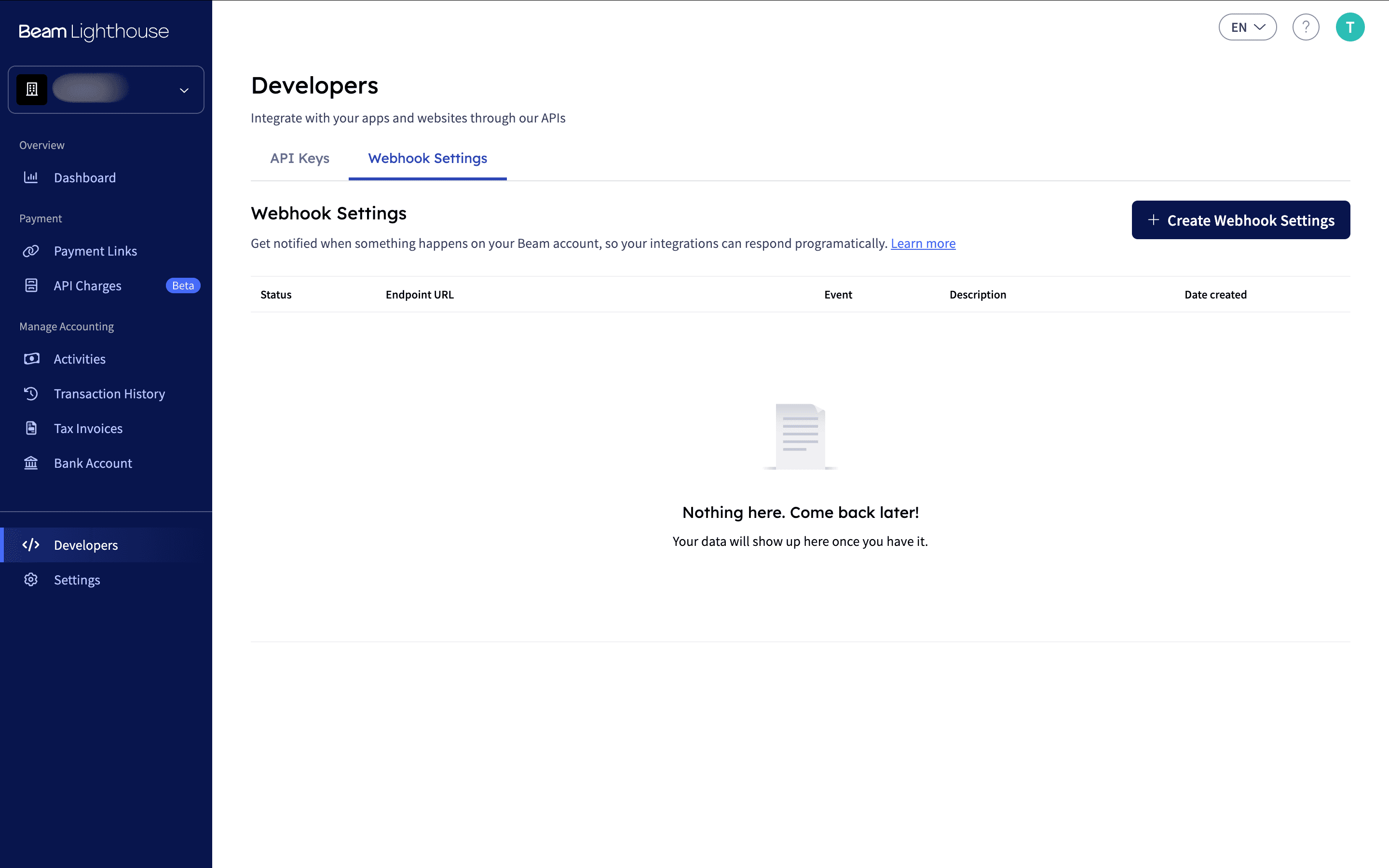
- Webhooks: This is where you can configure your webhooks to receive events from Beam.
-
For now, click on the Create API Key button to generate a new API key. You can add description and name to help you remember what this key is used for.
-
Now that the API key is created, you can click on the Show button to reveal the API key. You can copy this key and use it in your API requests to authenticate them.
Please DO NOT share your secret API keys in any publicly accessible places such as GitHub, GitLab, BitBucket, on your client-side code, and so on.
-
Next, you can configure your webhooks to receive events from Beam. Click on the Webhook Settings section.
-
Next, you can click on the Create Webhook button to create a new webhook. You can add the URL of your webhook endpoint and select the events you want to receive.
-
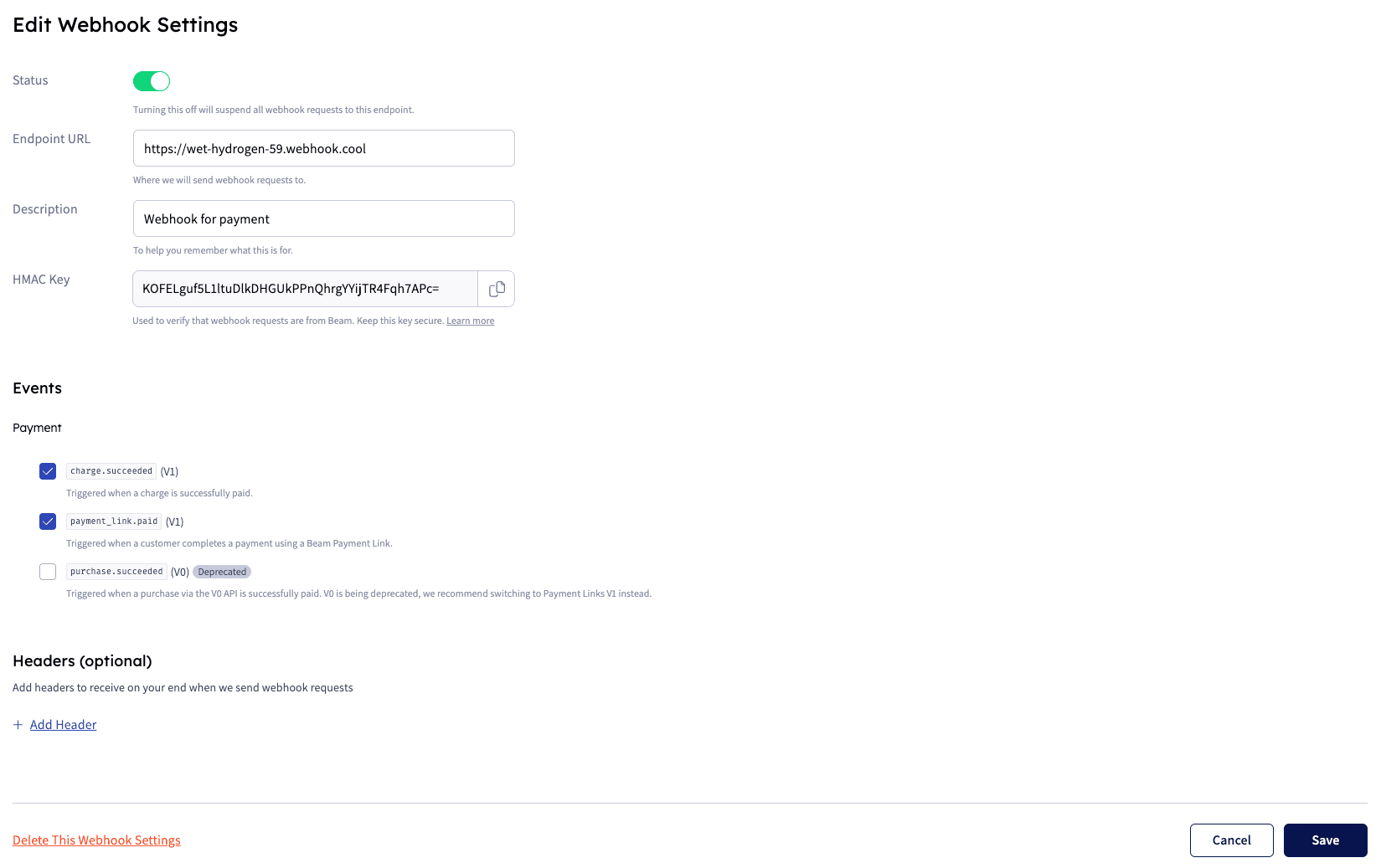
After creating the webhook, you can see additional details (such as the HMAC Key used for authentication) and make changes to it by clicking on the webhook settings you want to edit, this includes endpoints, additional headers, and events you want to receive.